Version 2.0 for iOS
Input Elements and Orientation
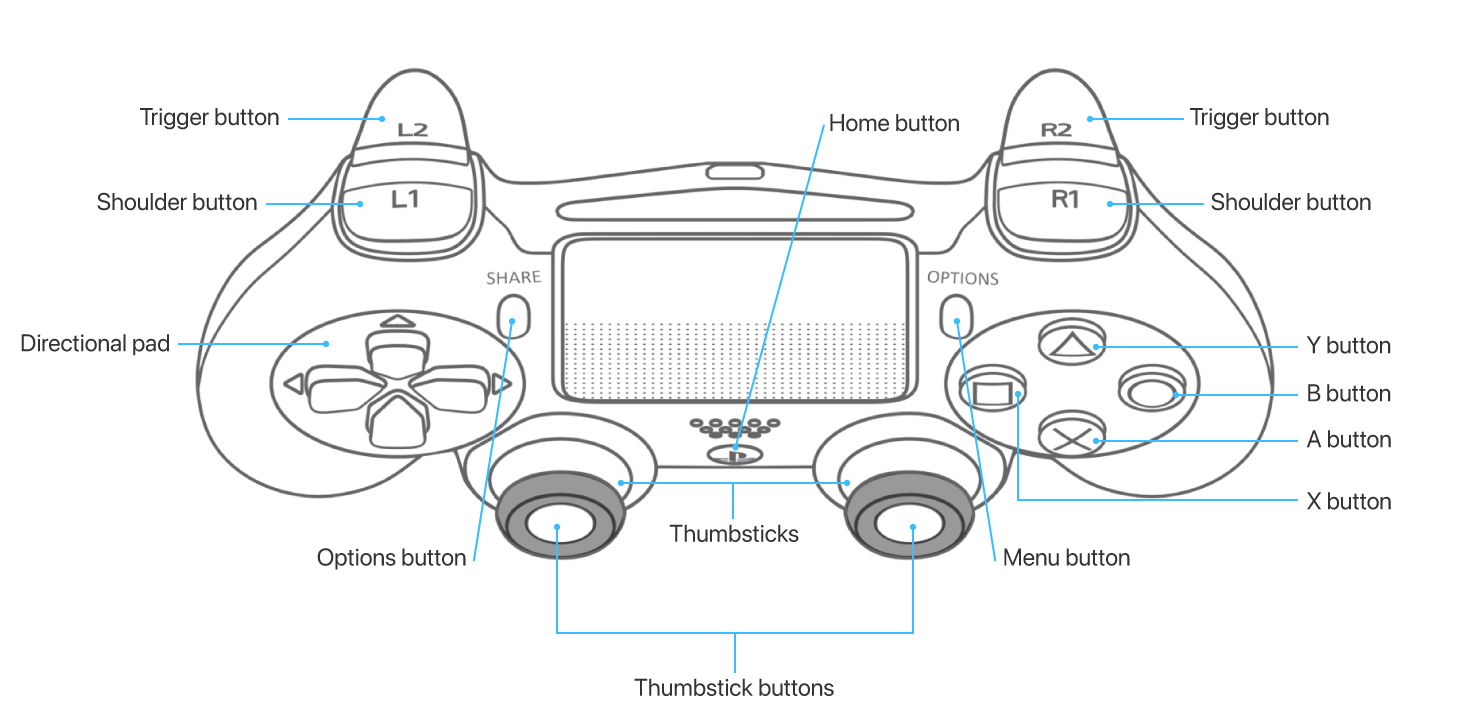
If you are not yet familiar with a gamepad have a look at the figure below. Watch the different types of buttons and their functions.
If your gamepad has a built-in motion sensor, make yourself familiar with the gamepad’s coordinate system.
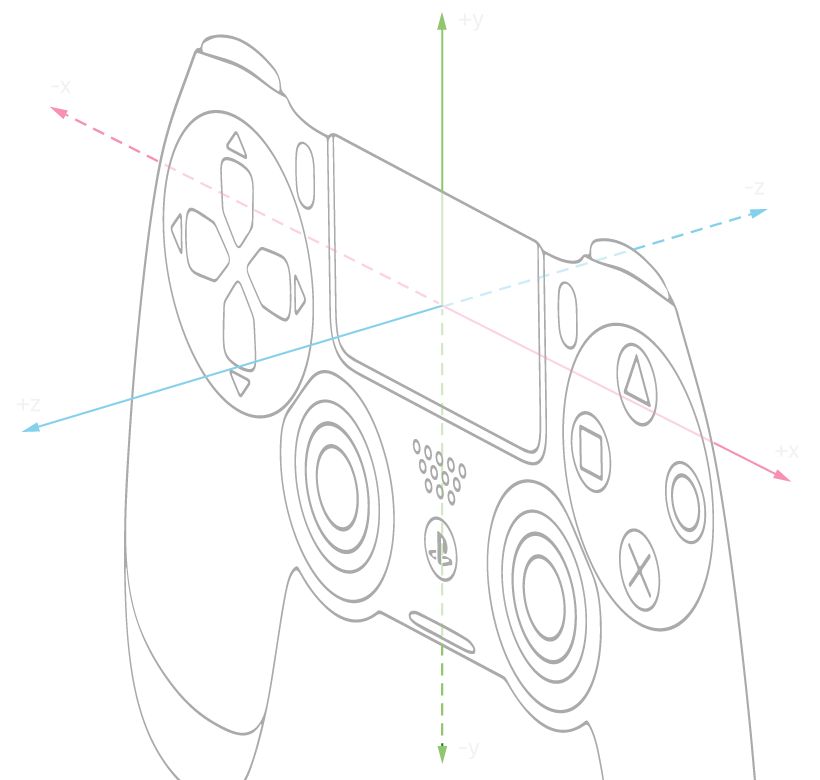
Note that for musical purposes, a positive or counter-clockwise rotation around the X-axis corresponds to decreasing values, whereas a positive rotation around the Y-axis corresponds to increasing values.
Start Playing a Piece of Music
To start playing a music piece press the  or the
  button. Press the same button again to pause the player. Pressing the button again causes the player to resume playing from the last position.
Use the  or the
  button to rewind the player to the beginning of the music piece.
Switch to the Next Title
Press the  or the
  button to proceed to the next title in your musical collection. Pressing the
  or the
  button presents the previous title in the list.
Control the Tempo and the Velocity
To change the current musical tempo rotate the gamepad around the X-axis. Similarly, to increase or decrease the velocity, turn the controller around the Y-axis. Take your time to try this out. It is essential to give your music pieces an expressive rhythm.
Articulation and Pedal
To articulate musical notes you can play notes shorter than actually notated. Use the shoulder button to gradually shorten the played notes. The left shoulder button will affect the performance of the lower staff, the right one that of the upper staff. Use the right trigger button to mimic a sustain pedal. This enables you to play notes longer than actually notated.
Selective Velocity
So far, we applied velocity to all played notes. You can also control the velocity for each staff and voice individually. Use the left and the right stick to change the velocity for the second or the first staff, respectively. Note that the per-staff and per-voice velocities add to the general velocity controlled by the motion sensor.
Predefined Tempo and Velocity
Musical scores typically define musical tempi for a whole piece or for specific parts. You can modify these predefined tempi with the direction pad. Press the left or right arrow repeatedly to increase or decrease the tempo, respectively.
Similarly, the up and the down arrows are used to increase or decrease the basic velocity.
Configuring the Gamepad
What you have previously learned is a controller configuration suited for a keyboard and a grand staff notation. You are free to assign any musical element to the controller’s keys. Save your specific profile for later use.